Introduction
To improve the uptime and quality of its services, Rmoni is migrating early-on customers to the high-availability datacenters of Combell. This migration requires a one-time configuration update of the on-site Rmoni Gateway(s).
To support this, a simple configuration tool has been developed that allows customers to perform the update themselves from a laptop. This eliminates the need for an on-site visit by an Rmoni or Partner engineer. The process is straightforward:
Download the tool using the file at the bottom of this article
Run the automated update for each gateway (a list of gateways will be provided by Rmoni)
This document explains how to update an Rmoni Gateway so that it connects to the new server IP address. This update is required to guarantee continued connectivity to the Rmoni platform and to keep measurement data available online.
Please note that the laptop running the tool must be connected to the same network (subnet) as the gateway(s).
You will receive a list of target gateways, including their unique MAC addresses, to verify and complete the update correctly.
Step 0 - Things you need to check in advance
Make sure to check the following things during an installation:
- Windows PC/laptop
The tool is GatewayDiscover.exe. An .exe file is a Windows program and only runs on Windows.
- Same network (subnet) as the gateway
The PC or laptop must be connected to the same network as the gateway. If it is connected to a different network, the gateway cannot be detected.
- A list of gateways (MAC addresses)
Rmoni provides a list of gateways and their MAC address. A MAC address is an unique ID for the gateway. It helps you confirm you’re updating the correct gateway.
Step 1 - Download the tool
You can find the ZIP-file for the tool in the attachments at the end of this support article.
To open the tool, make sure to unzip the main folder and navigate to ''GatewayTester''. To open the tool run the executable file ''GatewayDiscover.exe''.
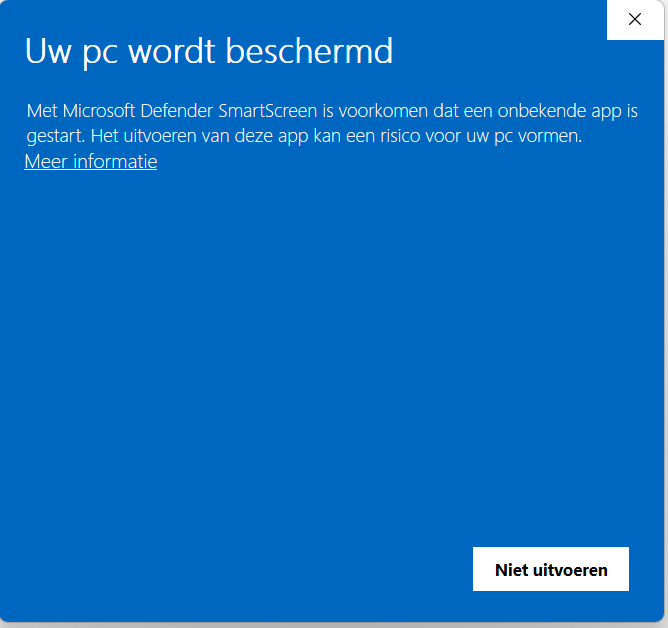
Please note a warning may pop up. Click on ''More information'' and allow the program to run:
Step 2 - Run the configuration
Once you open the tool, the following set-up will pop up:
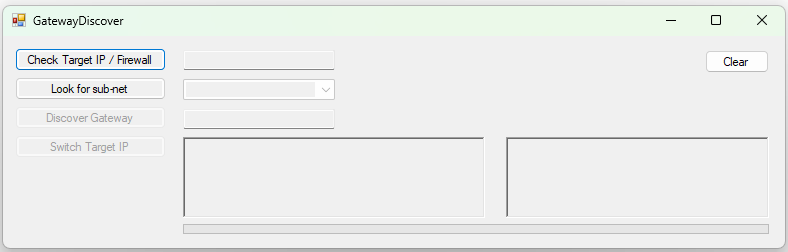
1) ''Check Target IP/Firewall''
This button is active after opening the tool. After pressing it, it will establish a connection to the desired target to verify the adjustment. It will provide feedback if everything is OK. After this, the other buttons can also be used.

If this button shows NOT OK, your firewall is blocking outgoing TCP connections. Please add the following firewall rule to proceed.
ALLOW [RAW TCP] from [internal IP] to 185.2.52.85 at port 63372) ''Look for sub-net''
Press this button. This will indicate the network (sub-net) to which the laptop has access. If several are found, steps 3 and 4 must be performed on all subnets.
3) ''Discover Gateway''
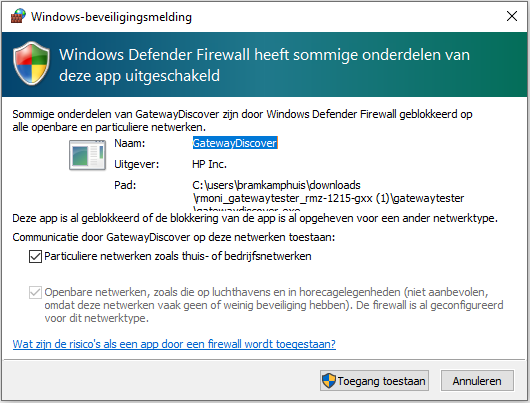
After clicking this button, a pop-up window will appear. Make sure both checkboxes are selected.
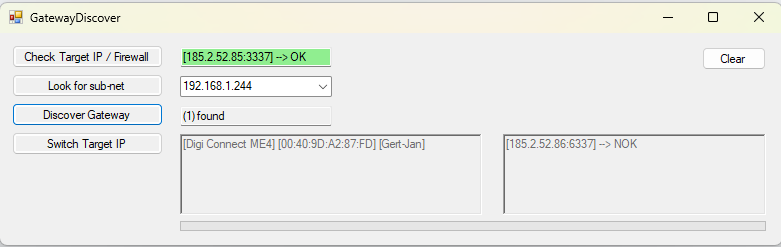
This action searches for the devices that need to be adjusted and displays the result on the right. If all the devices found receive an ‘OK’ confirmation, no action is required and the ‘Switch Target IP’ button will not become active. If the result for a device found is ‘NOK’, the following action can be performed.
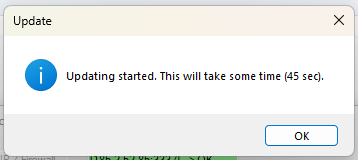
4) ''Switch Target IP''
When this button is pressed, the IP will automatically be redirected to the new IP:
5) Repeat steps 3 and 4
After this, the flow must be repeated to double confirm that the device in question has changed from ‘NOK’ to ‘OK’. Repeat the previous steps to confirm that the device status has changed from NOK to OK.
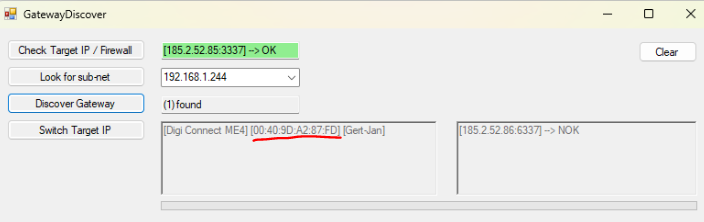
Make sure all MAC addresses you received match the MAC addresses shown in the tool. The MAC address is underlined in the image below.
The last four characters shown in the tool should match the last four characters of the MAC addresses in your list
Troubleshooting
If you encounter any problems, please contact helpdesk@rmoni.com for further assistance. We’re happy to assist.
Was this article helpful?
That’s Great!
Thank you for your feedback
Sorry! We couldn't be helpful
Thank you for your feedback
Feedback sent
We appreciate your effort and will try to fix the article